
SourceForge (Latest)
Obtain an ISO here: Download
First, we have two ways to obtain an ISO file.
Last time the ISO was built: 2026-03-06
SourceForge (Latest)
Obtain an ISO here: Download
Github Release (Latest)
Obtain an ISO here: Download
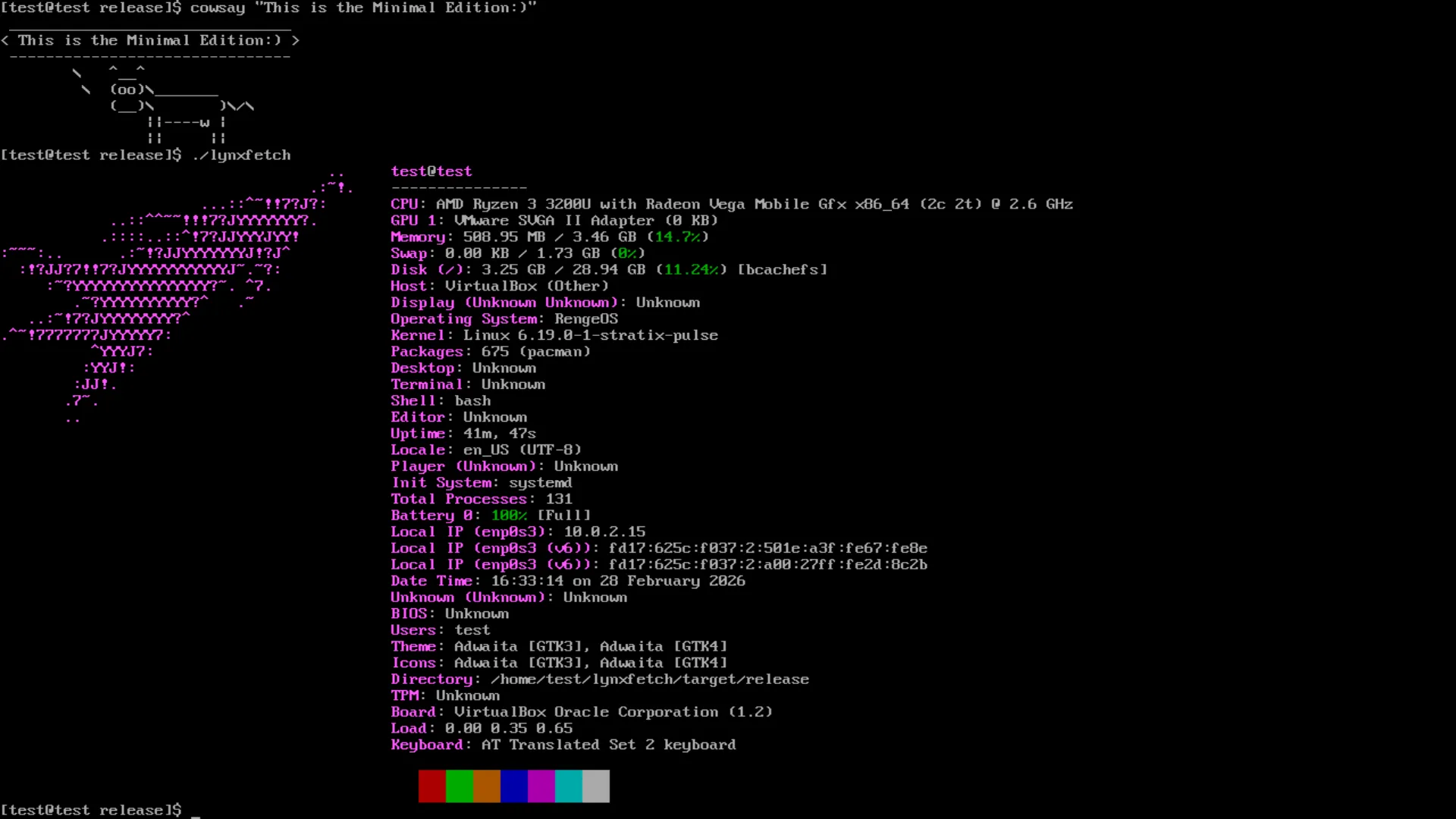
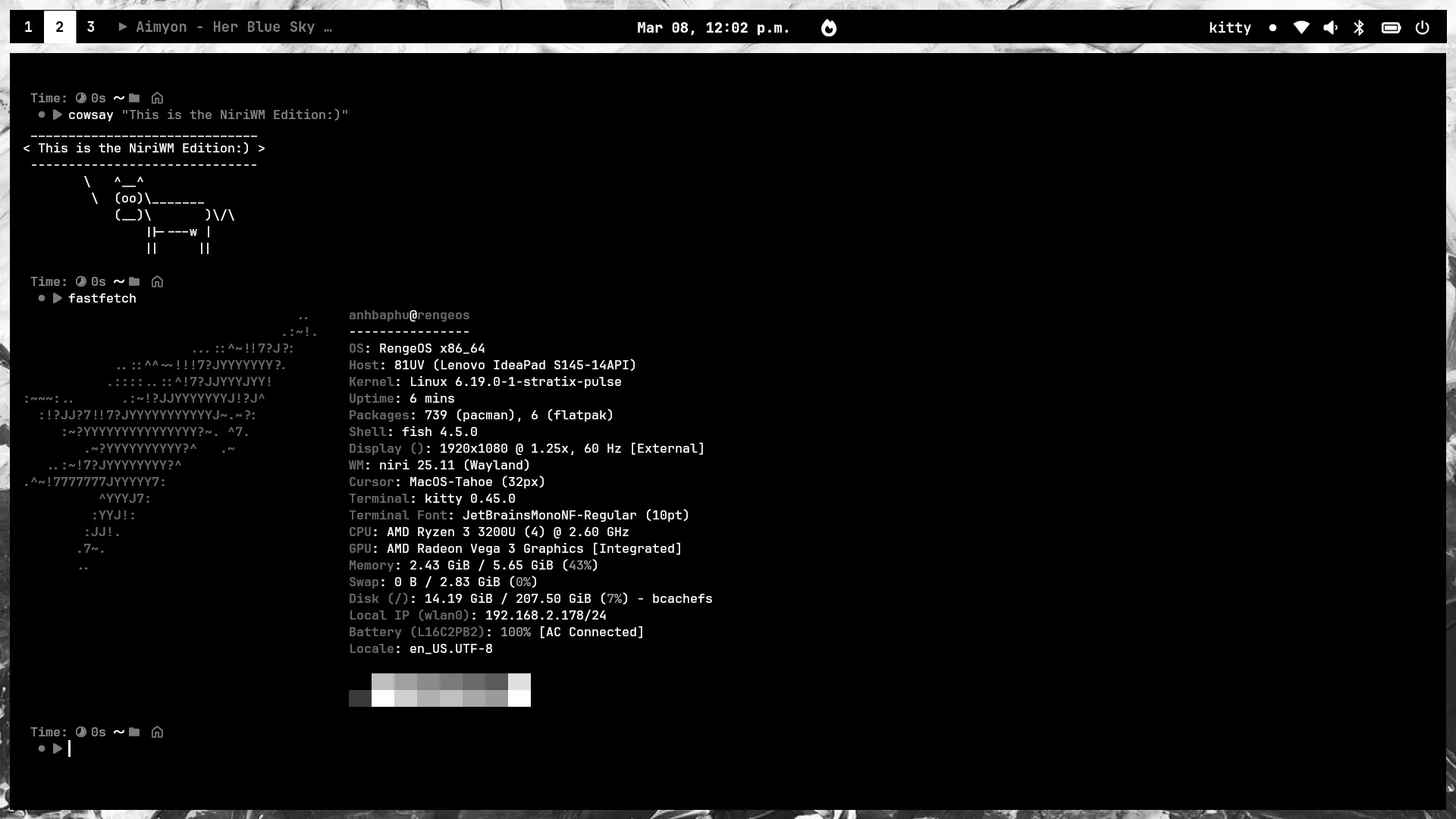
Last time the ISO was built: 2026-03-06
SourceForge (Latest)
Obtain an ISO here: Download
Github Release (Latest)
Obtain an ISO here: Download
How to combine ISO: Instruction
.iso.part001, .iso.part002, etc.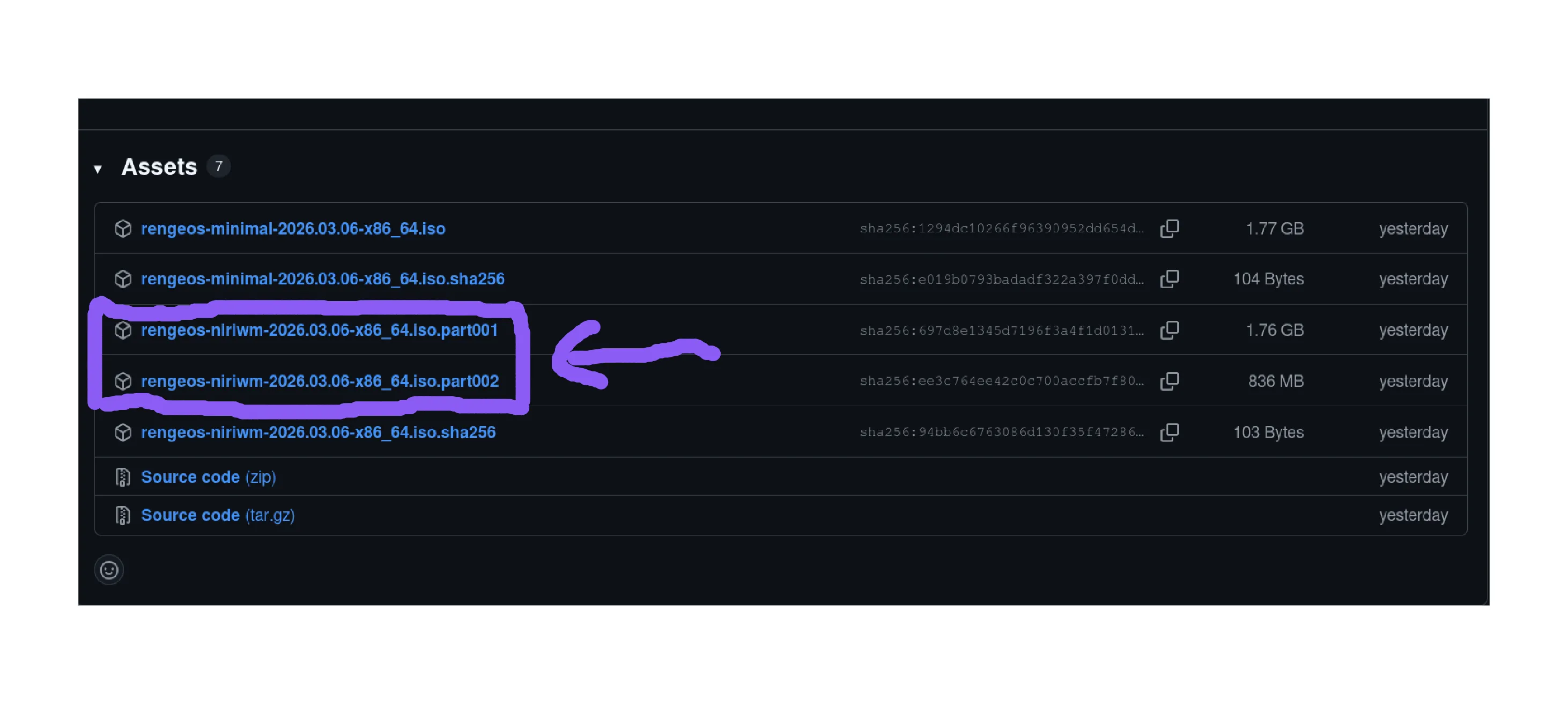
~/Downloads/ folder, and we’ll combine them into a complete ISO.# I need to move to the location where the downloaded parts are stored.cd ~/Downloads/# Now let's combine them.cat rengeos-niriwm-2026.03.06-x86_64.iso.part* > rengeos-niriwm-2026.03.06-x86_64.isoLet’s get started!
# You can replace ~ with $HOME if you want.cd ~ && git clone --branch minimal-iso https://github.com/RengeOS/Source-ISO && cd ~/Source-ISO/build_iso script../build_isoout folder.out folder, you will find the ISO file and the SHA256 checksum file.# You can replace ~ with $HOME if you want.cd ~ && git clone --branch niriwm-iso https://github.com/RengeOS/Source-ISO && cd ~/Source-ISO/build_iso script../build_isoout folder.out folder, you will find the ISO file and the SHA256 checksum file.[test@rengeos ~]$ ls test/rengeos-2026.01.29-x86_64.iso rengeos-2026.01.29-x86_64.iso.sha256[test@rengeos ~]$ cd test/ && sha256sum -c rengeos-2026.01.29-x86_64.iso.sha256rengeos-2026.01.29-x86_64.iso: OKOK as above, then your ISO is definitely fine; otherwise, I recommend you download a new ISO.